Historically, my work in analytics started with websites. Only later did I begin to dive deeper into mobile app analytics. It was similar with the projects I work with: they had websites for many years, and at some point mobile apps started to appear.
Time passed, Universal Analytics was replaced by Google Analytics 4, Firebase also went through changes, but there is one thing that hasn’t changed over these ten or so years:
Analysts are still responsible for Google Analytics, developers are still responsible for Firebase, and both teams forget that strength lies in synergy.
Or, if we drop the philosophy a bit and move to the practical problem, it usually looks something like this:
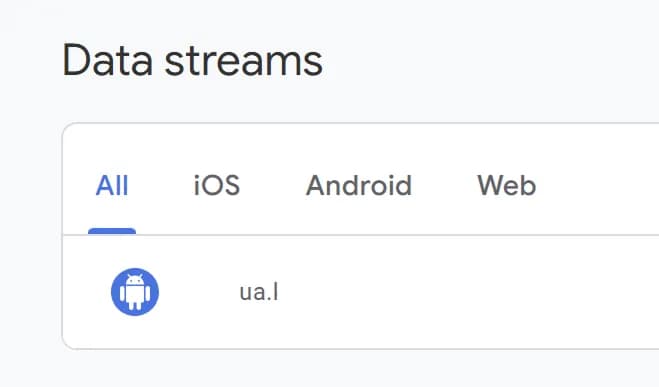
or like this:
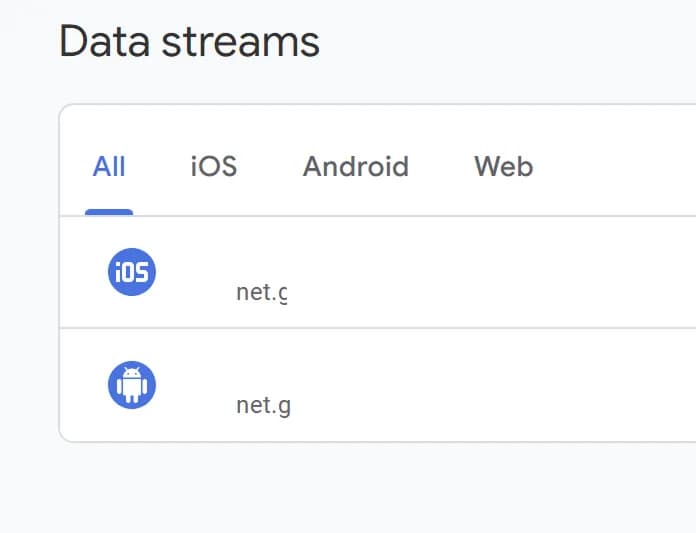
In other words: mobile app analytics lives its own separate life, while website analytics lives its own. And no one seems to care that in the modern world a user might visit a website and then, just 15 minutes later, continue interacting with the brand in the app.
Today’s tip is about how to avoid this situation and set everything up correctly.
Honestly, this situation becomes even more confusing if you have connected the GA4 data export to BigQuery. But we will cover that as well.
First of all, you need to understand what the correct setup should look like. The correct approach is when both the website and the mobile apps send data to the same property. Each into its own data stream:
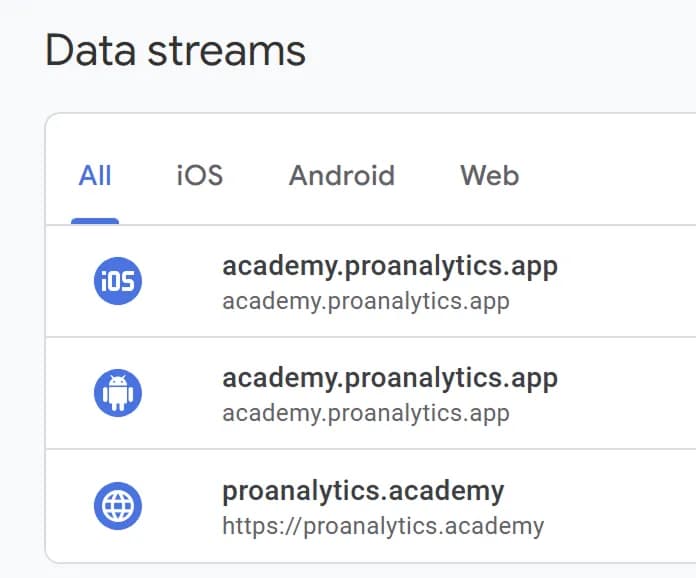
And although you can create data streams both in Google Analytics 4 and in Firebase, the correct way to do it is only through Firebase.
How to properly connect Firebase with Google Analytics 4
The step-by-step plan looks like this:
A reminder: this applies to the situation where you already have a GA4 property with a separate data stream for the website, you have enabled the website data export to Google BigQuery, and you want to send mobile app data there as well.
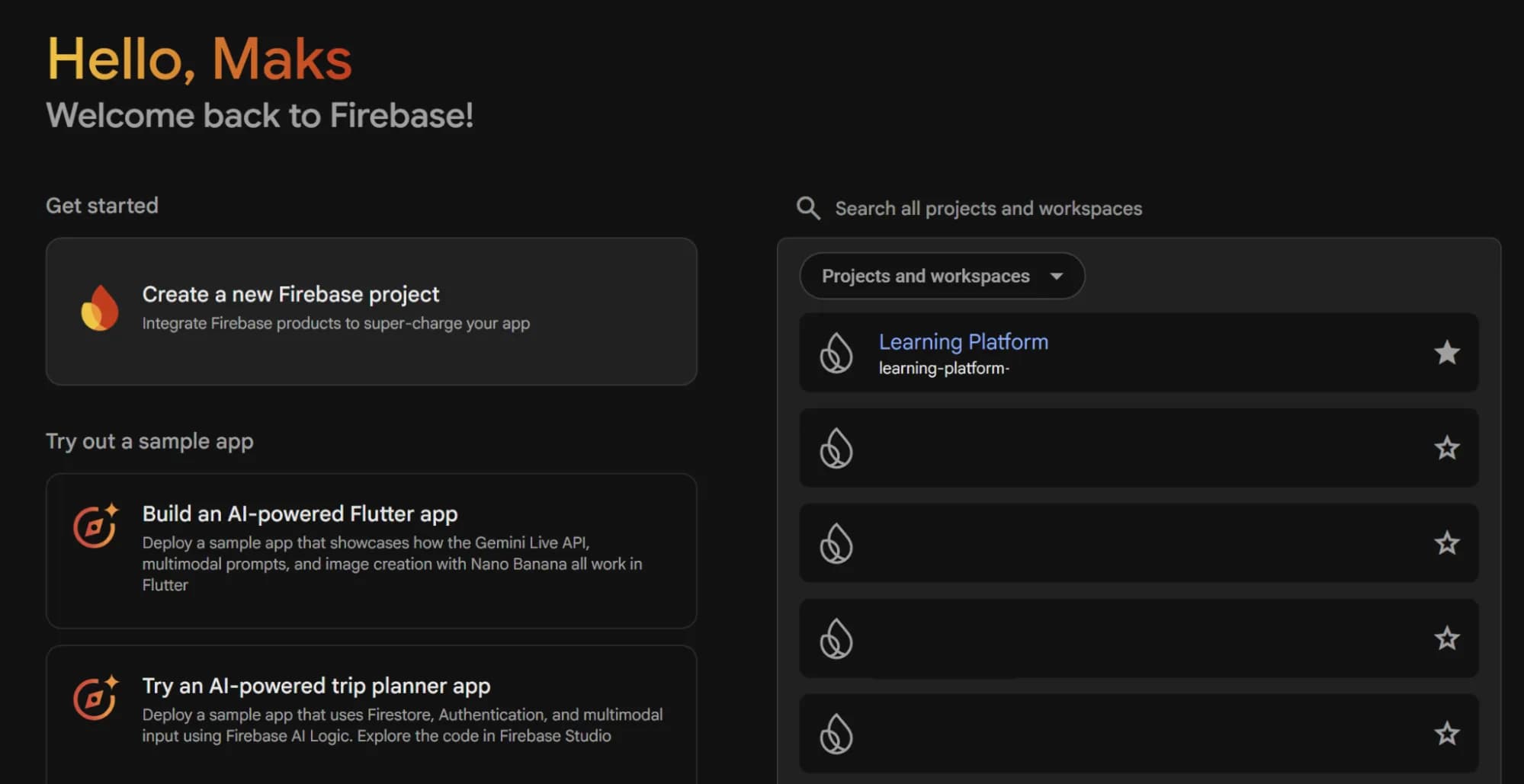
- Start the standard process of creating a Firebase project.
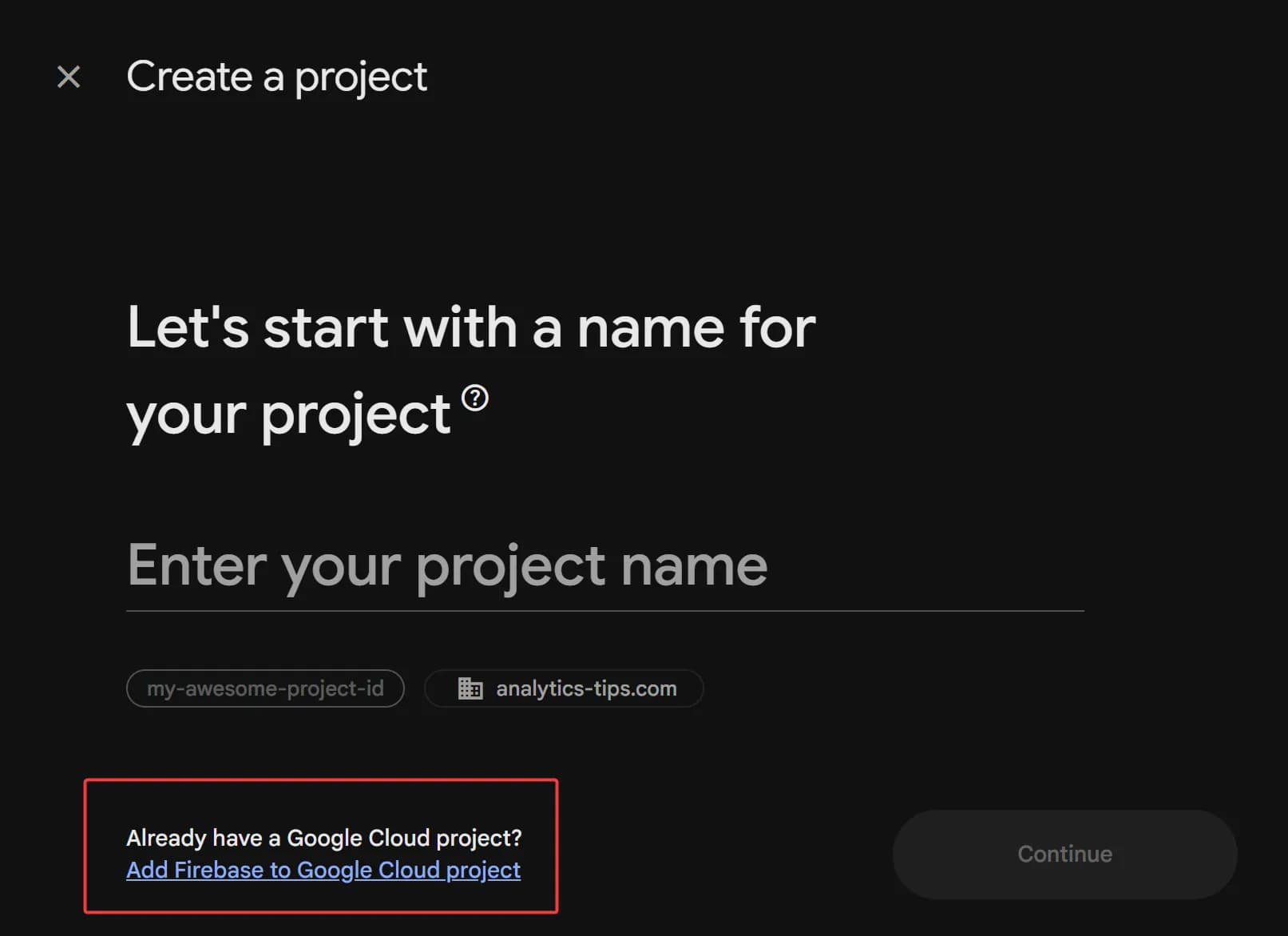
2. But on the next step DO NOT enter the name of a new project. Instead, select the option Add Firebase to Google Cloud project at the bottom.
3. Continue with the Firebase project creation until you reach the screen shown in the screenshot below:
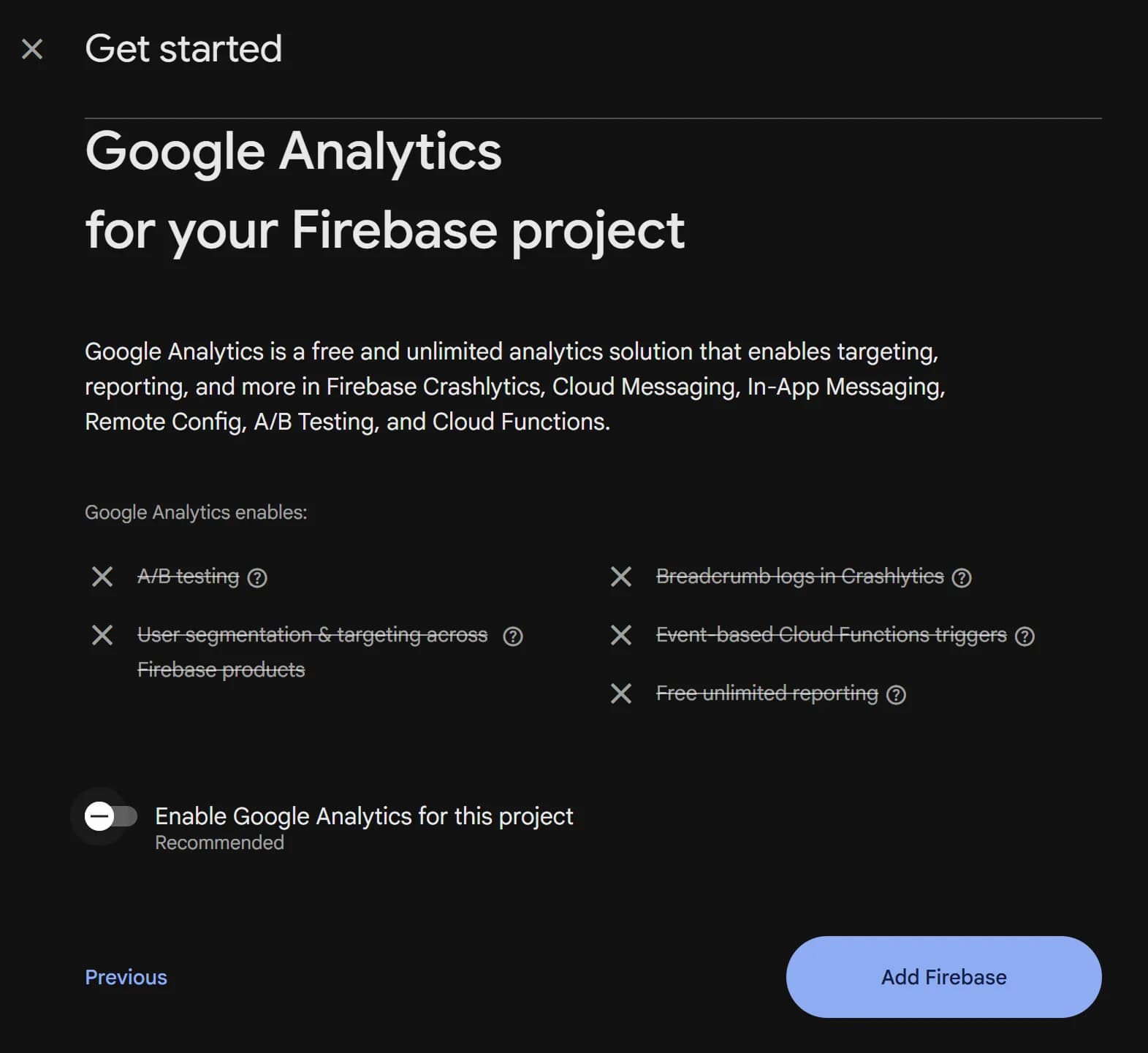
On this screen, make sure to uncheck the box next to Enable Analytics for this project.
Previously, it was possible to select an existing property at this stage, but this option has now disappeared, which is why I’m describing this workaround.
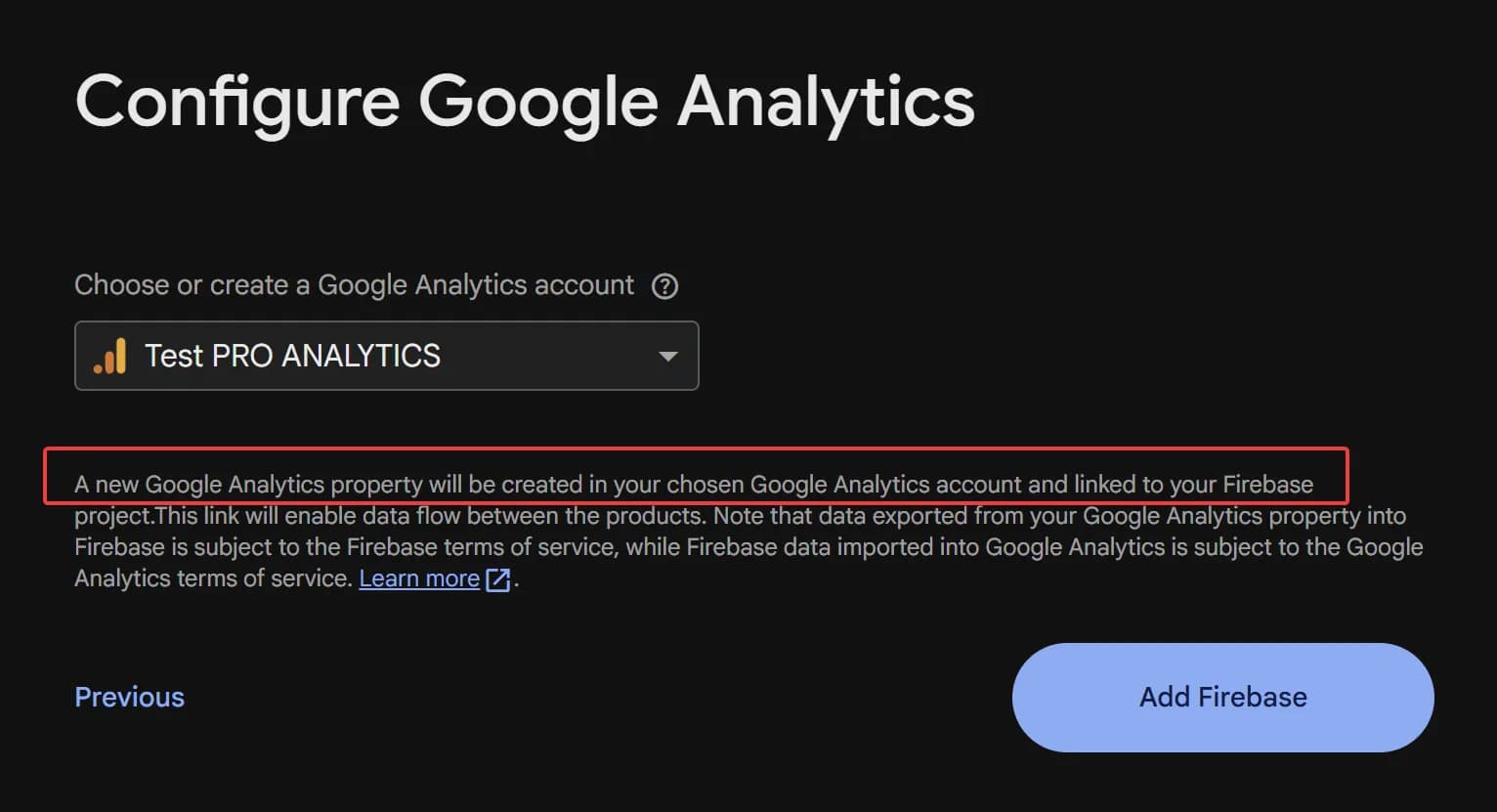
A note for those who are curious about what happens if you don’t uncheck it.
In that case, you will be asked to create a new GA4 account or select an existing one, where a new property for mobile apps will be created. This is explicitly stated on the next screen. Since we want to link everything to our existing property, this option does not work for us.
4. Continue through the project creation steps and simply add your apps to Firebase.

5. After adding the apps, go to the Integrations settings in Firebase.
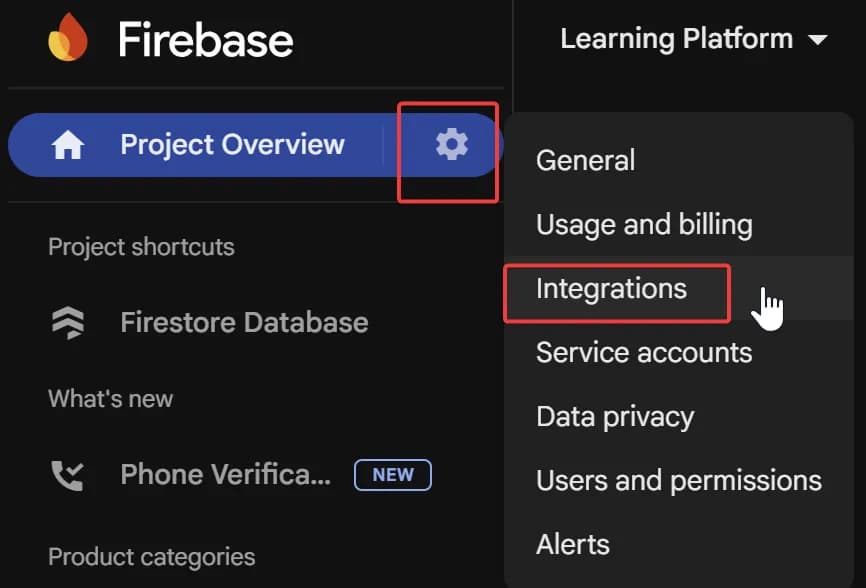
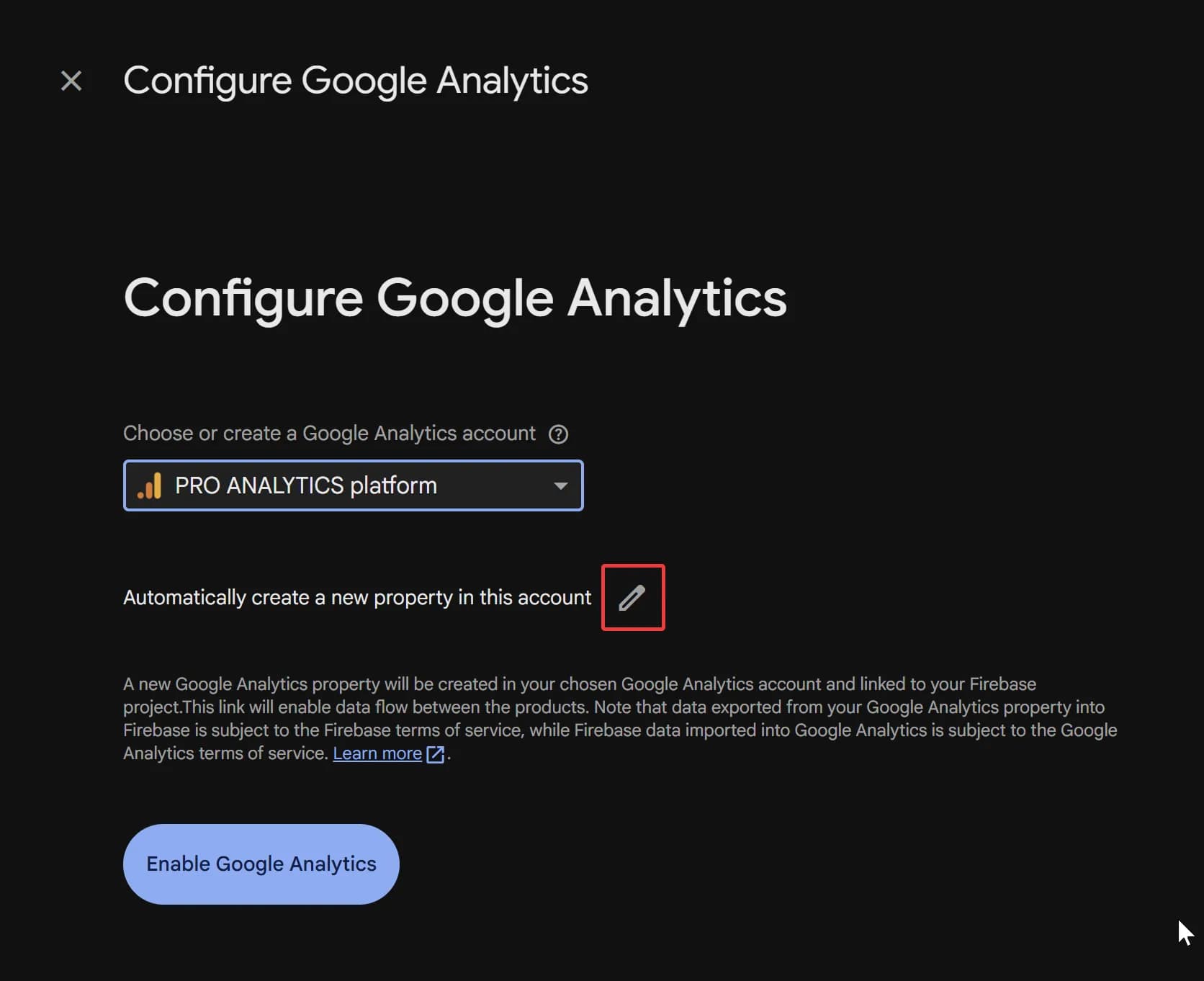
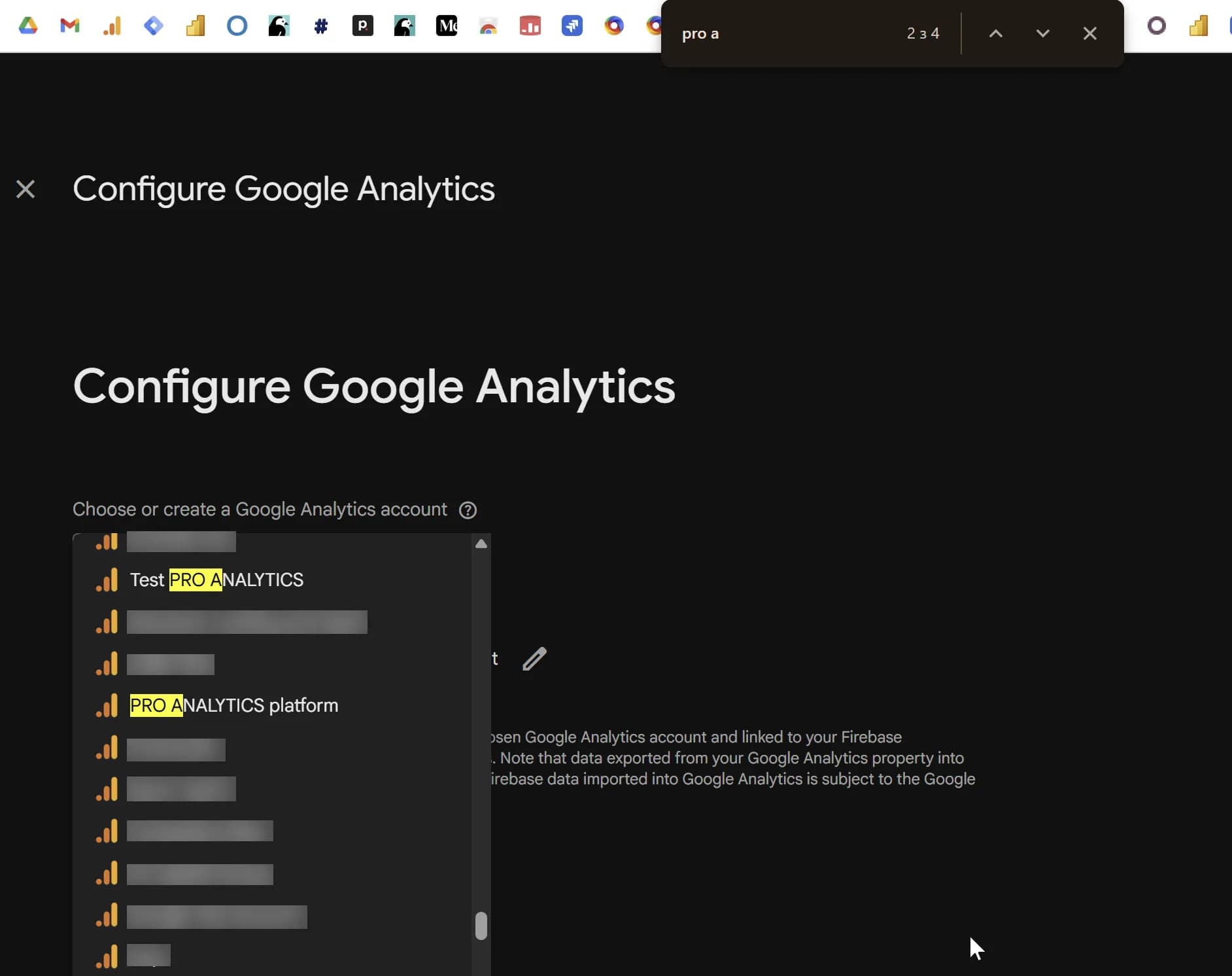
6. Select the Google Analytics integration and create a new one. At the step where you need to choose a GA4 account, select the existing one (the one where your website data is located), but don’t rush to click Enable Google Analytics. First, you need to click the small pencil icon above this button next to Automatically create a new property in this account. This is where you will be able to select your existing GA4 property.
7. If everything went successfully, you should see something similar to my next two screenshots.
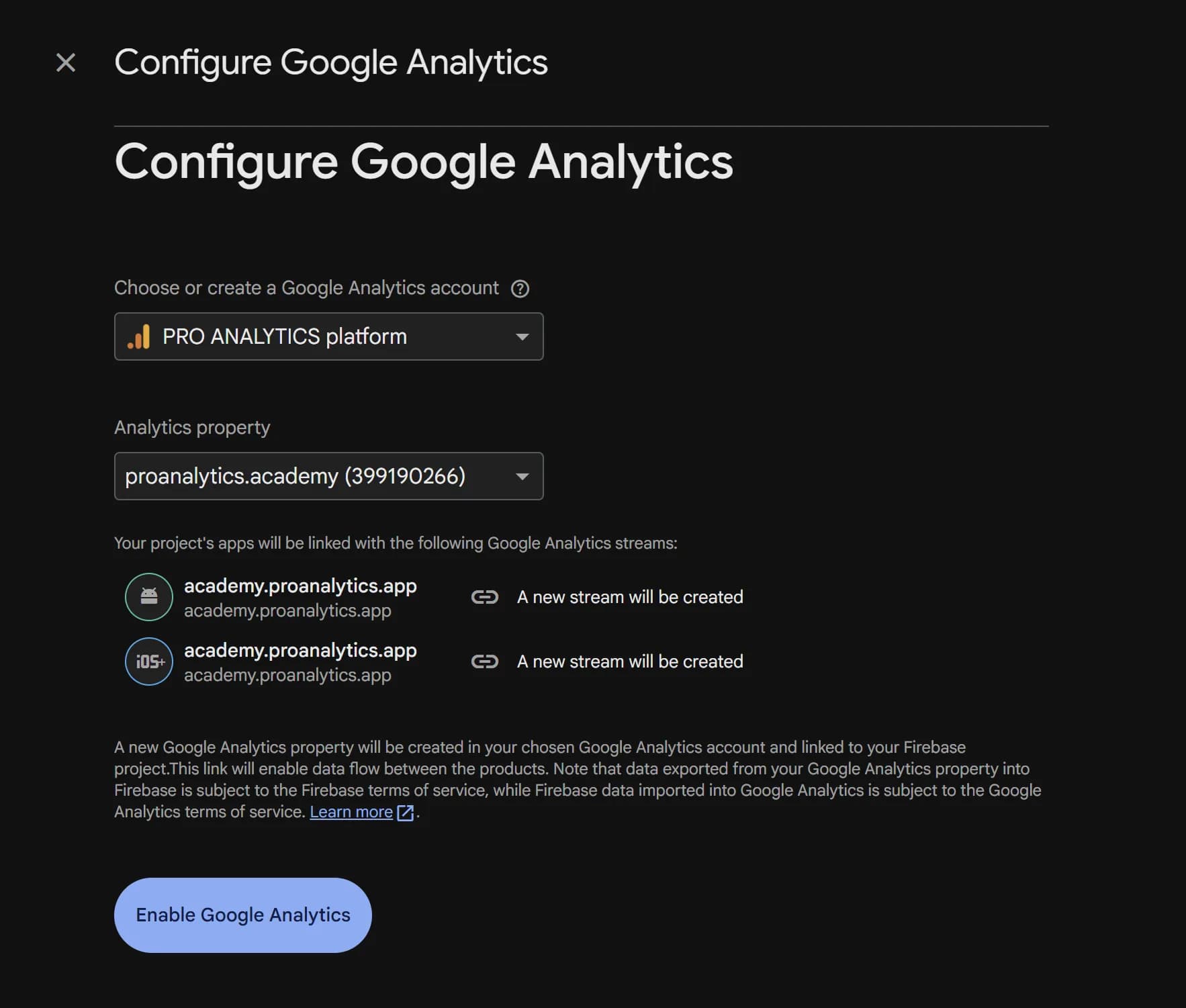
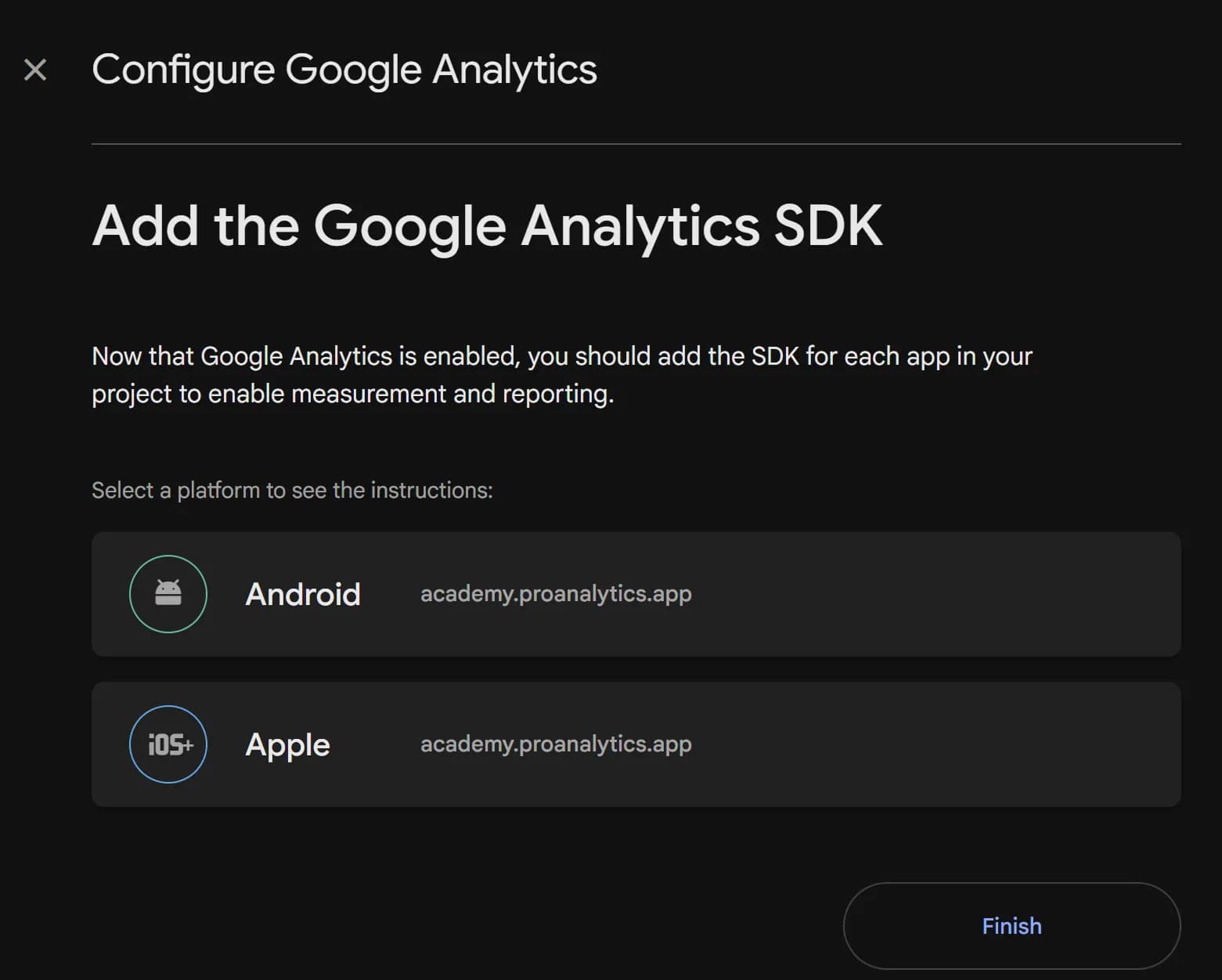
Congratulations! Now you have done everything correctly.
For some reason, the Firebase development team didn’t think to add search for GA4 accounts, but the browser’s page search will help you.
Why you shouldn’t create mobile app data streams through the Google Analytics 4 interface
Although the GA4 interface allows you to create a data stream not only for a website but also for mobile apps, creating a mobile app data stream there is one of the worst ideas.
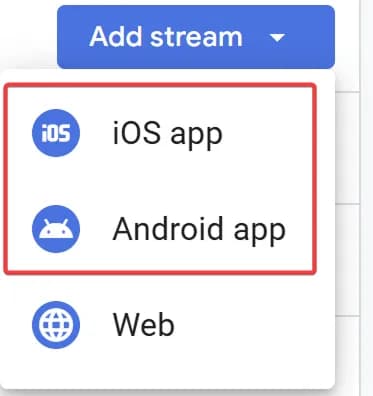
The reason is that when you create a mobile app data stream this way, GA4 under the hood still creates a separate Firebase project for you and, as a result, a new project in Google Cloud Platform. The problem is that you don’t choose any settings for this project during the creation process. And there’s really no reason for you to have two separate projects in GCP. That’s why the best solution is to go through Firebase.
Instead of a conclusion
I hope this short article will help you reduce the number of architectural mistakes when working with your projects, and that it will finally allow you to build a system that helps analyze the user journey regardless of whether users interact with your brand on the website or in the mobile app. Of course, this setup is only the first stone among those you will need to lay. But now you will lay it correctly.
If you’ve figured out the architecture, I recommend taking a look at the next article in the series — Connecting Firebase and Google Analytics 4 to an Android app.

Web Analyst, Marketer
Have thoughts or feedback?
Share with others and join the discussion.Loading comments…