
Fri, February 27, 2026
Cross-Domain Tracking in GA4: When It’s Needed and How to Set It Up
When a business has multiple websites — for example, a main website or brand blog and a separate e-commerce store on different domains — analysts face a challenge. How can you understand that a user who came from an ad to the blog and then made a purchase in the store is the same person?
Without special configuration, Google Analytics 4 will see them as two different users, break the session, and “lose” the original traffic source. This is exactly the problem that cross-domain tracking solves — a setup that combines user actions across different domains (for example, site.com and shop.com) into a single profile.
On the other hand, in my practice I have encountered many situations where cross-domain tracking was not necessary, yet it was still configured. One of the classic mistakes is setting up cross-domain tracking for subdomains.
In other words, I can confidently say that when it comes to cross-domain tracking, it’s important not only to know how to configure it, but first and foremost to understand when it is actually needed. Today’s article is meant to finally clarify this once and for all.
So here’s the plan:
Why does this matter for analytics?
Technically, browsers are designed so that cookies belonging to one domain are generally not accessible to other domains for security reasons. The same applies to the cookies that GA4 uses to identify a browser (for example, Client ID). Without cross-domain configuration, the system will treat one visitor across two different domains as two separate users, creating two areas of uncertainty for the business:
- A broken customer journey: you don’t see the full sequence of actions and cannot understand which specific content interaction on the first resource, such as a blog, actually drives sales on the second one, such as a store.
- Lost attribution: when a user moves between domains, the original source (Ads or Organic) is replaced with a referral from your own primary domain. You see the conversion, but you don’t know which ad generated it.
As a result, the data becomes inaccurate, making it difficult to properly evaluate marketing performance and channel ROI. However, despite the obvious advantages, combining domains is not necessary in every situation. Let’s look at real examples.
When cross-domain tracking is needed — and when it’s not
Although the ability to combine data from different resources seems attractive, this setup is not a universal solution. Its relevance depends on the business logic you want to reflect in your reports.
When cross-domain tracking is needed
Configuring a single GA4 Property with cross-domain tracking is the “gold standard” for brands whose websites represent a unified user journey (for example: official blog → store → purchase, or global website → local store → purchase). If your marketing strategy and sales funnel are shared across both resources, combining data allows you to see the full customer journey rather than fragmented pieces.
To understand the value of this approach, consider a real scenario. Imagine a visitor clicks on your Google ad, lands on your official brand website, reads a detailed product review, then navigates to your e-commerce store and makes a purchase.
- With properly configured cross-domain tracking, you get a transparent picture. The system clearly shows that the purchase originated from that first ad. You’ll know exactly which article the user read before ordering, you’ll see one continuous session, and you’ll maintain a “clean” attribution model.
- Without it (when using two separate properties), the data loses integrity. The store will record only a referral from your main domain. The original traffic source (Ads or Organic) will be lost, the session will break, and the customer journey will become fragmented.
This approach turns separate data streams into a unified customer journey, giving you three key advantages:
- End-to-end attribution. You connect final revenue to the actual acquisition source rather than to transitions between your own sites.
- Session continuity. Data isn’t duplicated, and engagement metrics and time-on-site become more accurate because moving to another domain is no longer treated as the end of a visit.
- Content impact analysis. You can see which pages on your supporting website best “warm up” the audience and drive store sales.
When cross-domain tracking is NOT needed
Sometimes trying to combine everything into a single GA4 property creates more problems than analytical value. The main cases when you should avoid combining domains include:
- Subdomains.
If your resources are located on subdomains of the same root domain (for example, blog.brand.com and brand.com), GA4 automatically recognizes them as a single site. In this case, cross-domain tracking is unnecessary — the system “out of the box” identifies the same user and preserves session continuity. - Ownership and data access separation.
If you need to strictly limit access to information (for example, the content team should not see financial reports or store sales data), using a single property is not advisable. Even with report filters configured, it remains structurally a shared database, and true access separation is only possible between different properties. - GA4 technical limits.
Many limitations in Google Analytics 4 apply at the property level rather than the domain level. This includes the number of custom dimensions, metrics, and BigQuery export limits. If both of your websites have very high traffic or require deep customization, separating them into two properties allows each to have its own “package” of limits. - No shared user journey.
Cross-domain tracking only makes sense if visitors actually move between your domains. If the sites do not link to each other and users have no reason to navigate between them within a session, this setup brings no analytical value. - Different business models.
If your domains, although owned by the same company, represent organizationally or legally independent businesses with different sales funnels, separating them into distinct GA4 properties will be a cleaner and more practical long-term solution.
To summarize, when making a final decision, align it with your marketing structure:
One brand, one strategy, one sales funnel = one GA4 property + properly configured cross-domain tracking.
Different businesses or independent teams = two separate GA4 properties without cross-domain tracking.
How cross-domain tracking works
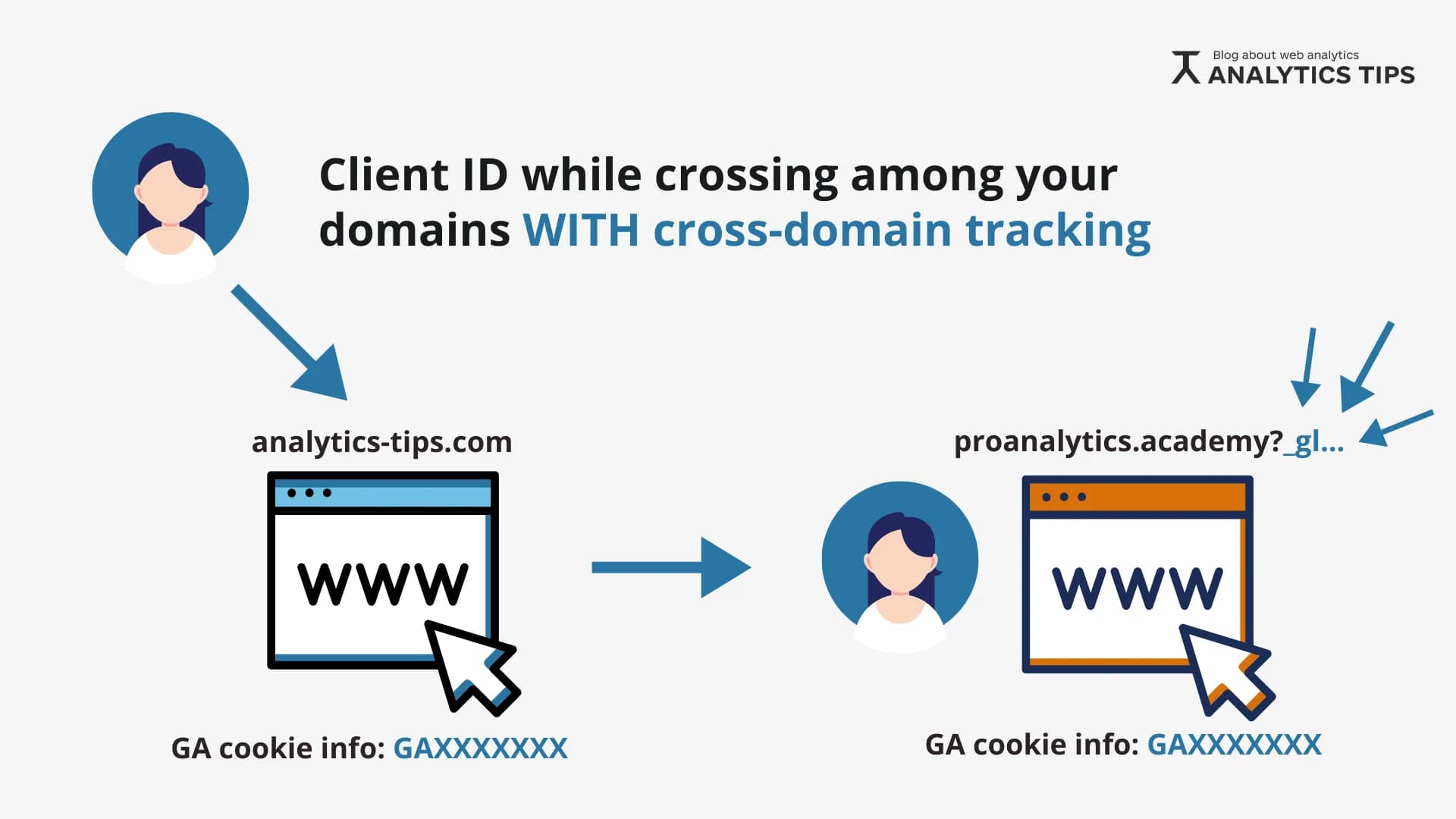
GA4 identifies a user’s device using cookies (Client ID) that are stored in the browser. However, as we discussed above, browsers prevent one domain (for example, proanalytics.academy) from reading the cookies of another domain (analytics-tips.com).
To bypass this limitation and avoid “losing” the user during the transition, GA4 uses a special URL parameter — _gl.
In practice, it works like this: when a user clicks a link that leads to your second website, GA4 automatically generates a unique identifier (linker) and appends it to the page URL, for example:
https://proanalytics.academy/?_gl=1*abc123*...
The Google Analytics code reads this parameter and understands that this visitor is the same person who was just on your main resource. As a result, GA4 connects the new visit with the previous session, preserving data continuity.
Of course, the code doesn’t actually “understand” anything. But instead of generating a new user or session identifier in GA4, it uses the one passed in the URL, and in this way the visitor’s session continues.
Let’s look at the difference in reports more clearly.
Scenario 1: without cross-domain tracking
GA4 sees two completely different users with different Client IDs. The customer journey is fragmented: the session in the store starts “from scratch,” and the traffic source is recorded as a standard referral from your first website.

Scenario 2: with properly configured cross-domain tracking
The Client ID is successfully passed via the _gl parameter. The system recognizes the same visitor, merges their actions into one continuous session, and preserves the original acquisition channel information.
Now that we’ve covered the technical logic, let’s walk through the setup process. This is actually the easiest part.
Setting up cross-domain tracking in Google Analytics 4
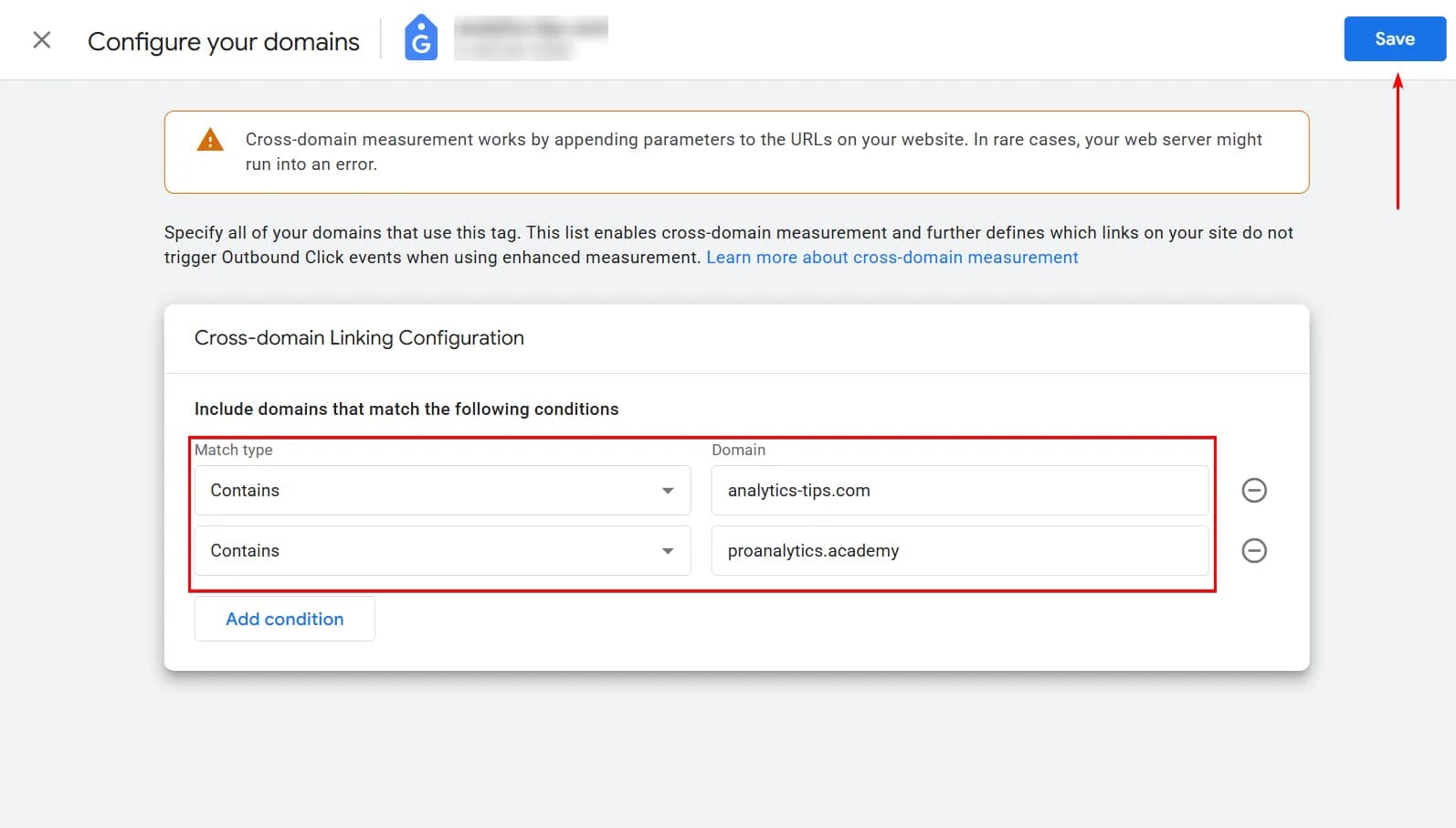
Go to GA4 -> Admin -> Data Streams -> select the required web data stream.
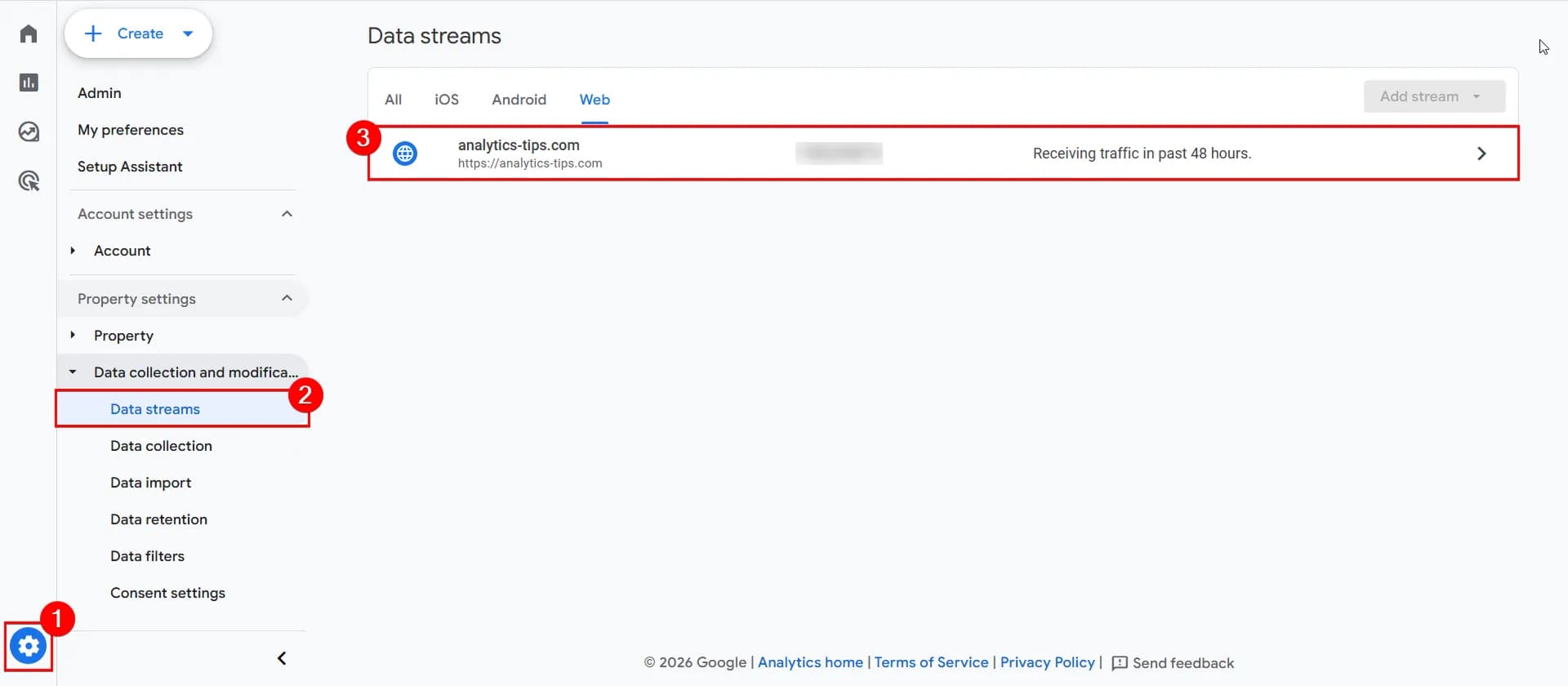
Click Configure Tag Settings at the bottom.
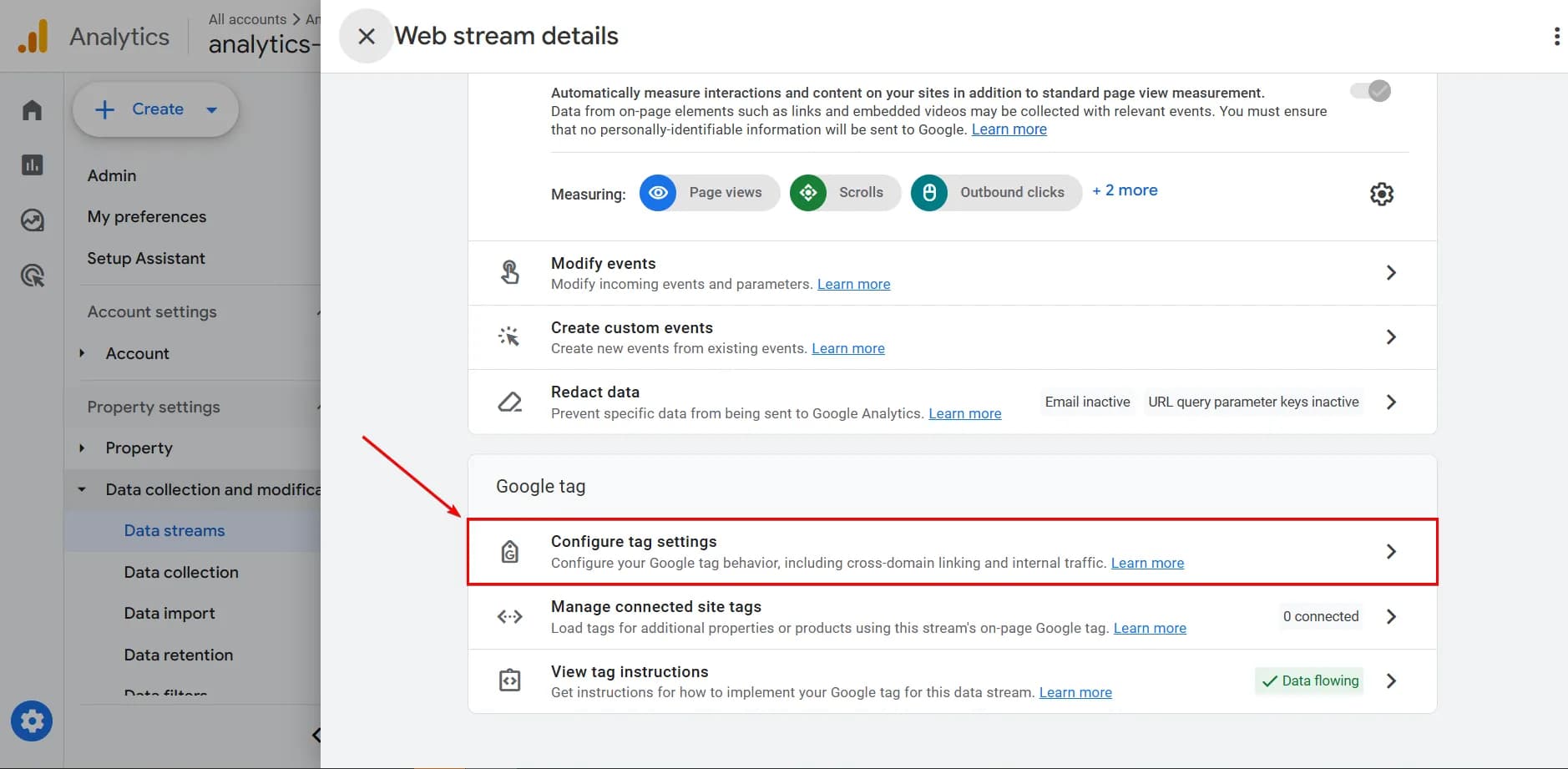
In the Settings section, find Configure your domains.
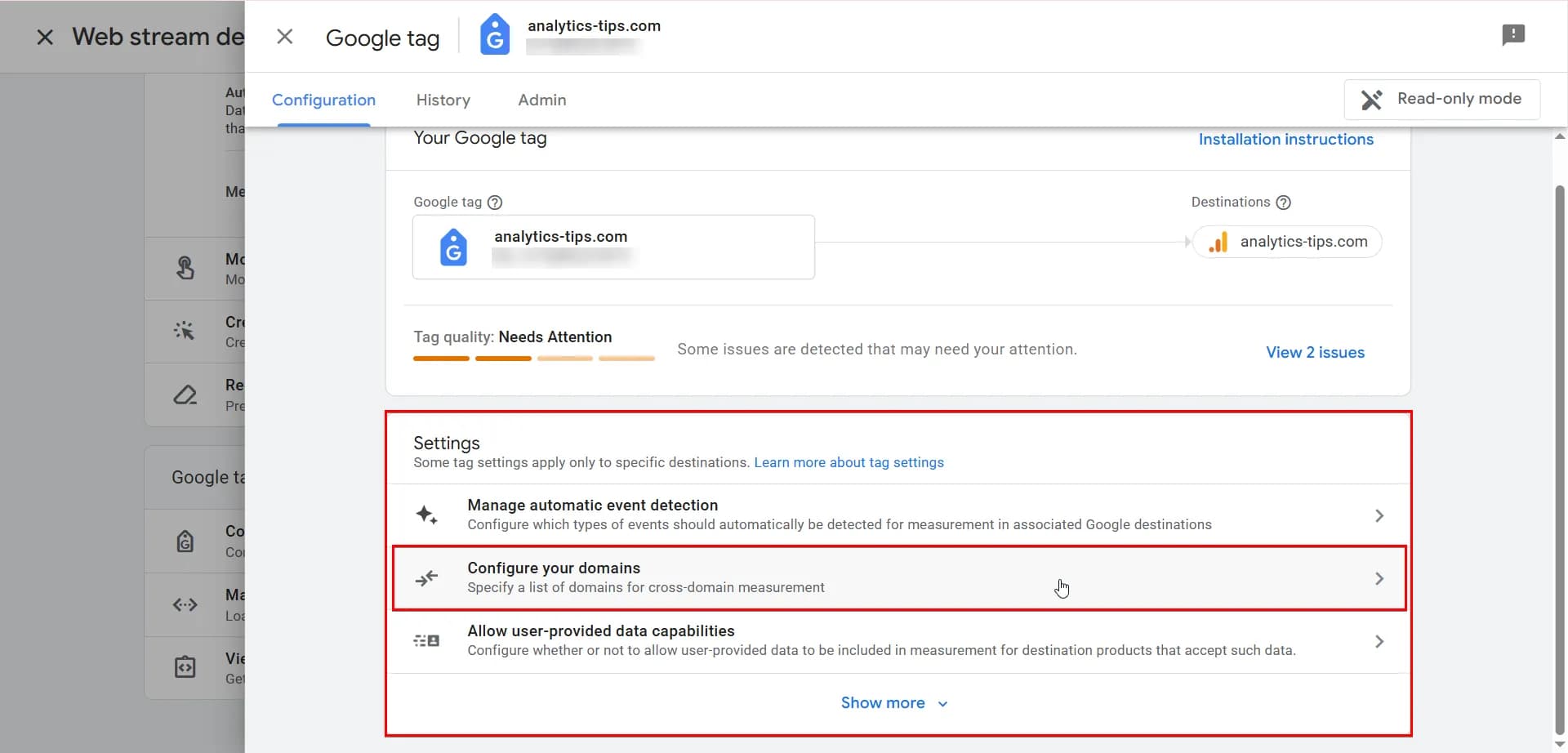
Enter all domains that need to be included in cross-domain tracking and click Save.
How to verify the setup
After configuring cross-domain tracking, it’s important to check whether it works properly. You need to make sure of two things:
- Check the presence of the _gl URL parameter in the address bar after the transition.
- Make sure that the Client ID and Session ID on the second domain are not generated from scratch, but inherited from the first domain.
Let’s go through this step by step.
First of all, you need to check for the presence of the _gl URL parameter in the address bar after the transition. To do this, go to your main (first) website and click on a link that leads to the second domain. If the configuration in the GA4 interface is correct, in the address bar of the second website you will see, in addition to the usual page URL, a GET parameter _gl=.... This value is an encrypted set of tags, each responsible for a specific tracking aspect:
_ga— the main Google Analytics client identifier._ga_XXXXXXXXX— a special marker of the current GA4 session._gcl_aw— Google Ads click data (if you are using ads)._fplc— a technical marker used to transfer data required for cross-domain tracking when GA4 is configured via a server-side GTM container.

If this part works, move on to the next step — compare the identifiers in cookies. There are many ways to do this, but I’ll share my two favorite ones.
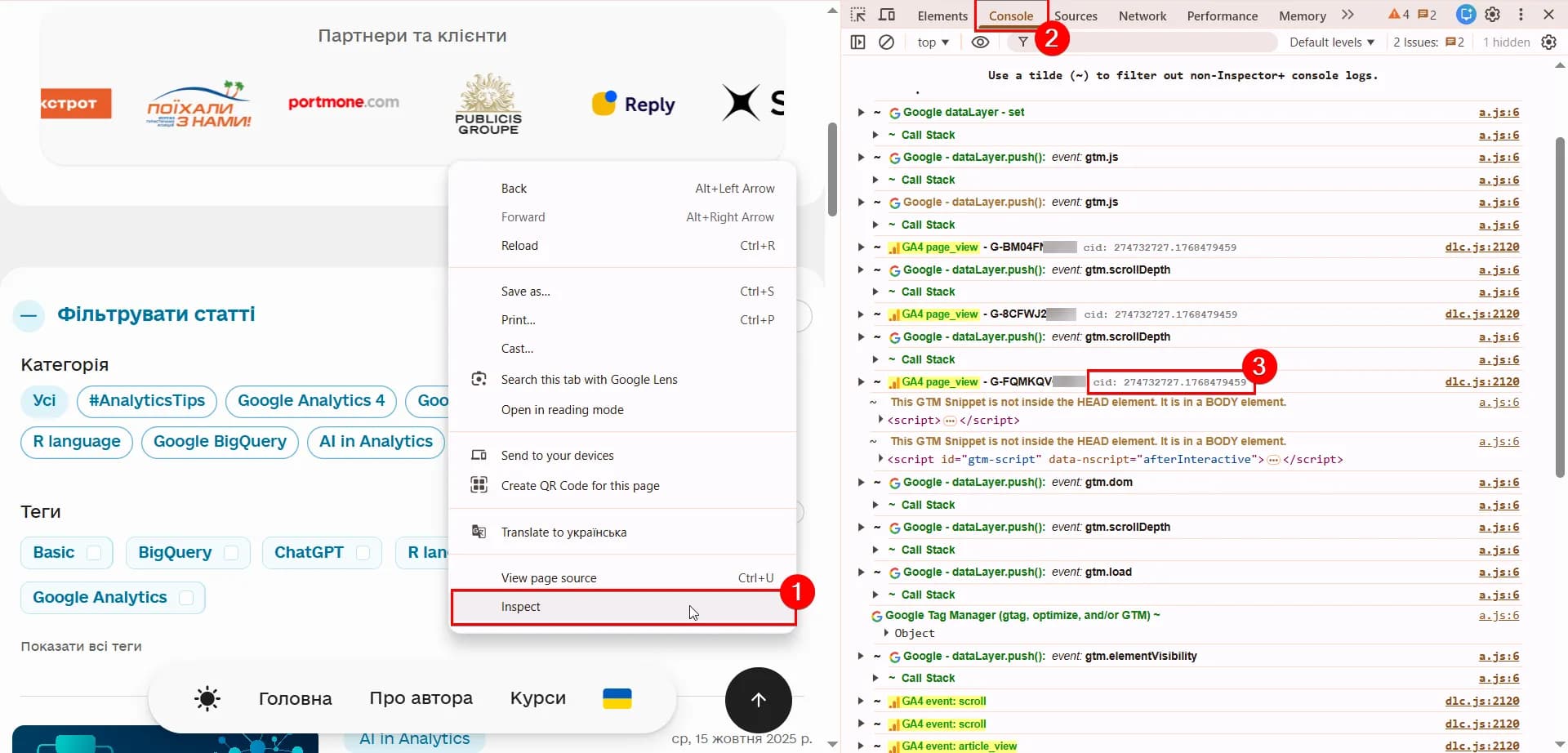
- Method 1. Use the Adswerve dataLayer Inspector+ extension.
This extension allows you to see the data your website sends to Google’s servers directly at the moment an action occurs. To verify the setup:- After installing the extension, open the browser console.
- Select the Console tab. You will see yellow-highlighted blocks of data for each GA4 event.
- Find the parameter cid (Client ID) — this is the unique number GA4 uses to recognize the user.
- Then navigate to the other domain (the one you specified in the cross-domain configuration) via a link on the site. Compare the cid on the second site with the one from the first site. If the number hasn’t changed, the system has successfully “stitched” the visitor together.
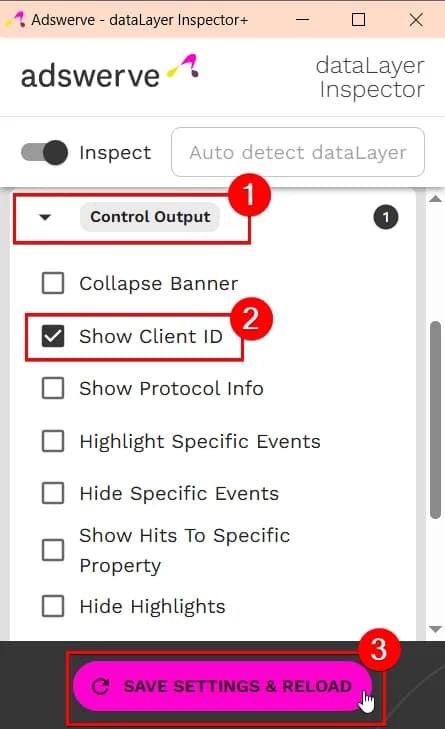
To display the cid (Client ID) next to each event record, open the extension -> go to Control Output -> check the Show Client ID checkbox -> click Save Settings & Reload.
- Method 2.
To do this:- On the first website (Domain A), open the console -> go to the Application tab.
- Navigate to the Cookies section.
- Find the
_gacookie (this is your Client ID) and the_ga_XXXXXXXXXXcookie (session identifier), where XXXXXXXXXX is your GA4 data stream ID. Write down or copy both values.
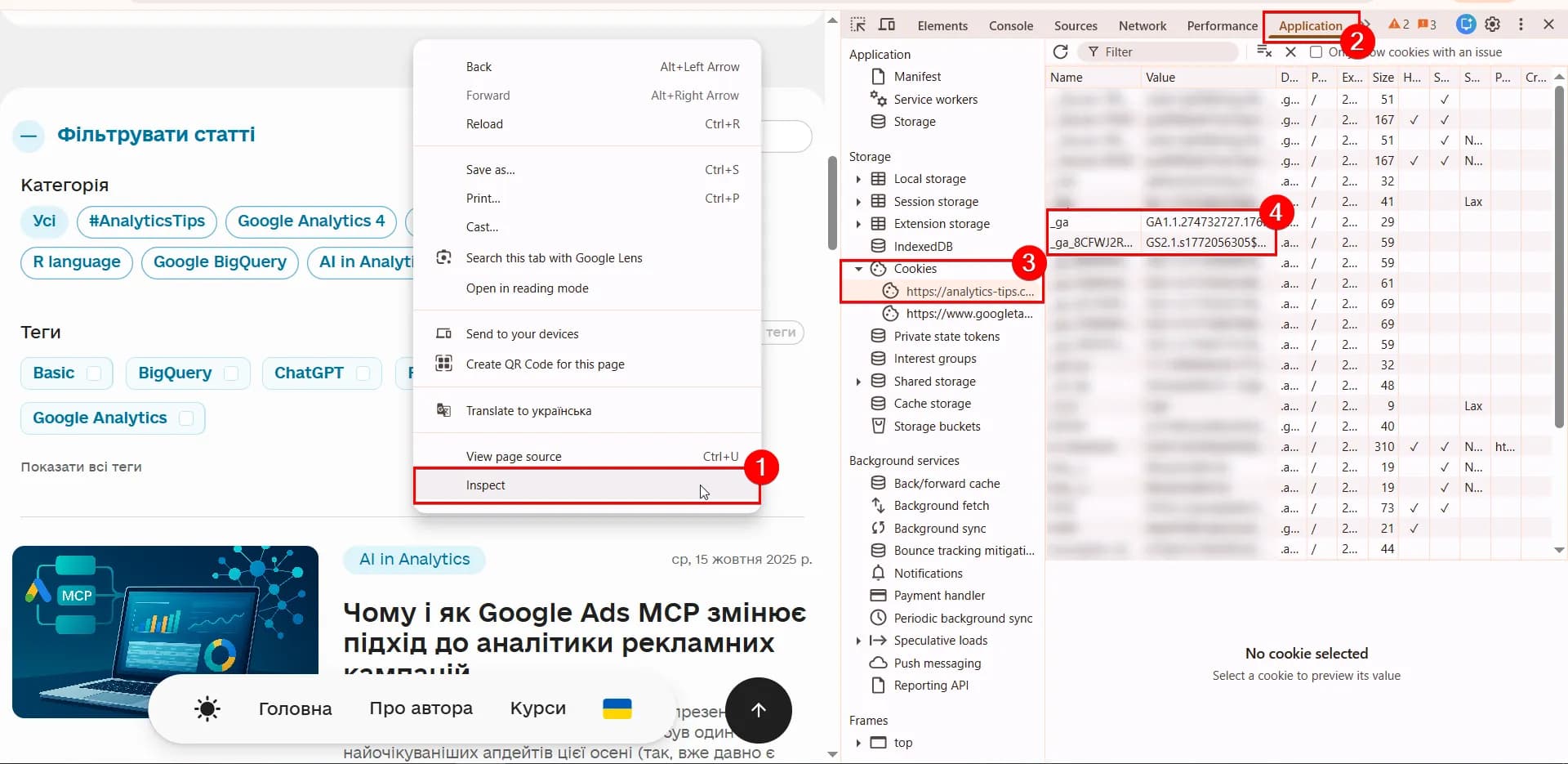
Then click the link that leads to the second website (Domain B). Perform the same steps in the console and check whether the values match those you saw on the first website.
Common cross-domain tracking issues and what else you need to consider
- Loss of connection between domains due to technical redirects
- Reason: automatic server-side or CMS redirects may strip technical parameters from the URL, including
_gl. If this identifier is removed before the tag loads on the destination page, the system will not be able to merge visits into a single session. - Solution: configure redirect rules so that all query parameters (
_gl) are preserved when users move between domains.
- Reason: automatic server-side or CMS redirects may strip technical parameters from the URL, including
- Automatic outbound click tracking stops working
- Reason: once a domain is added to the cross-domain configuration, GA4 no longer treats transitions to it as “external.” As a result, the Outbound Clicks feature in Enhanced measurement is automatically disabled for these addresses.
- Solution: if you need to track transitions between your own sites as events in GA4, configure dedicated custom events manually.
- Self-Referrals in traffic sources
- Reason: although GA4 usually ignores transitions from domains listed in the cross-domain configuration, due to technical nuances your own websites may sometimes appear in reports as referral traffic sources.
- Solution: check the accuracy of the list in the Configure your domains section and, if necessary, use the List unwanted referrals feature to explicitly exclude these sources.
- Broken sessions during indirect transitions
- Reason: the domain “stitching” mechanism only works at the moment a user clicks a link. If a visitor first goes to the first site, then closes it, and later navigates to your second site by manually entering the URL or using a bookmark, GA4 will not recognize them as the same user.
- Solution: make sure your primary sales funnel is built around direct interactions (clicks) between your websites. Alternatively, set a cookie_prefix for local cookies on the second domain. Simo Ahava describes this solution in more detail on his blog.
Замість висновку
Now I hope you’ll make the right decision about whether cross-domain tracking is truly necessary in your case — and that you’ll take all the nuances into account when configuring it.

Web Analyst, Marketer
Have thoughts or feedback?
Share with others and join the discussion.Loading comments…